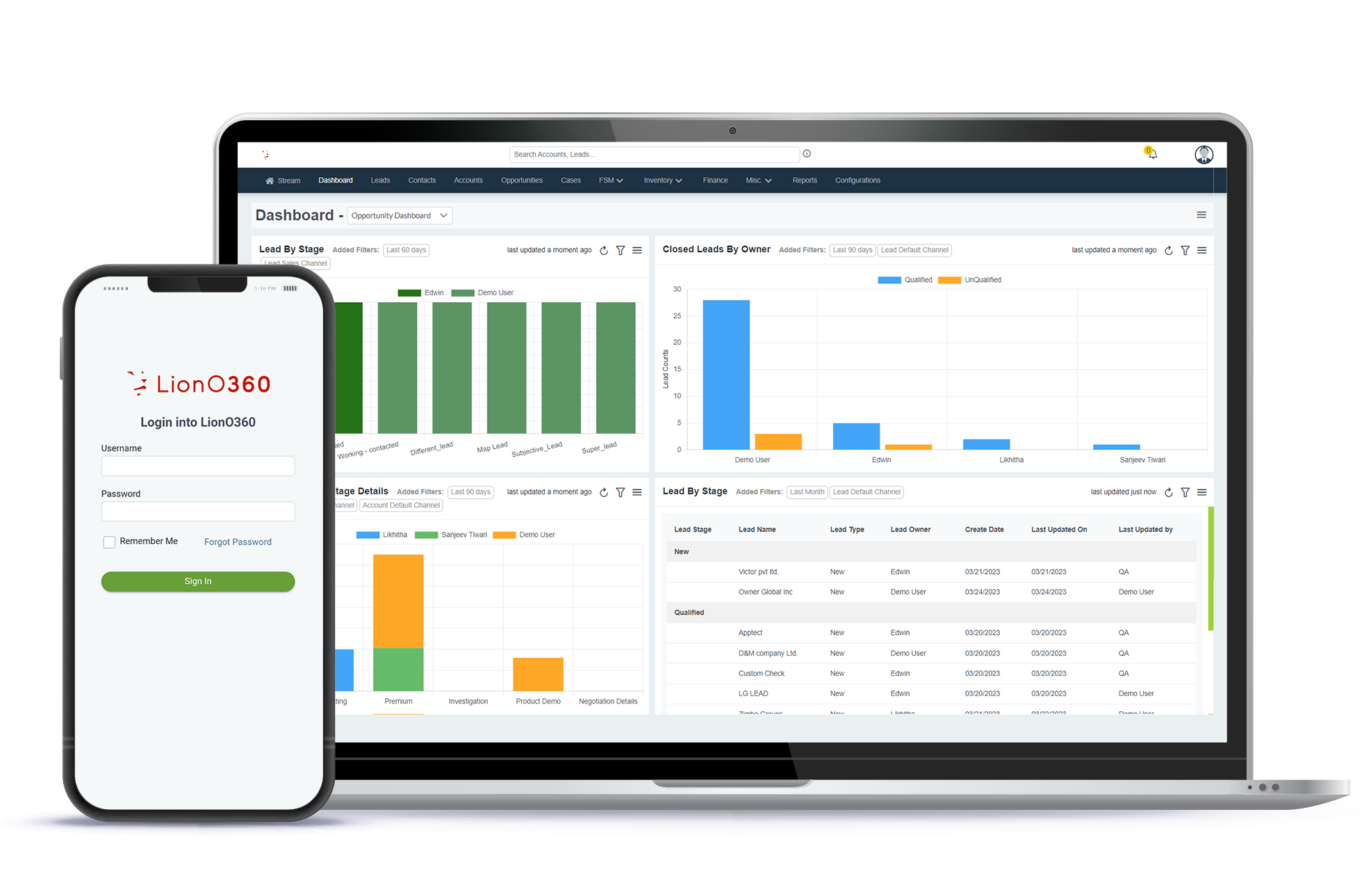


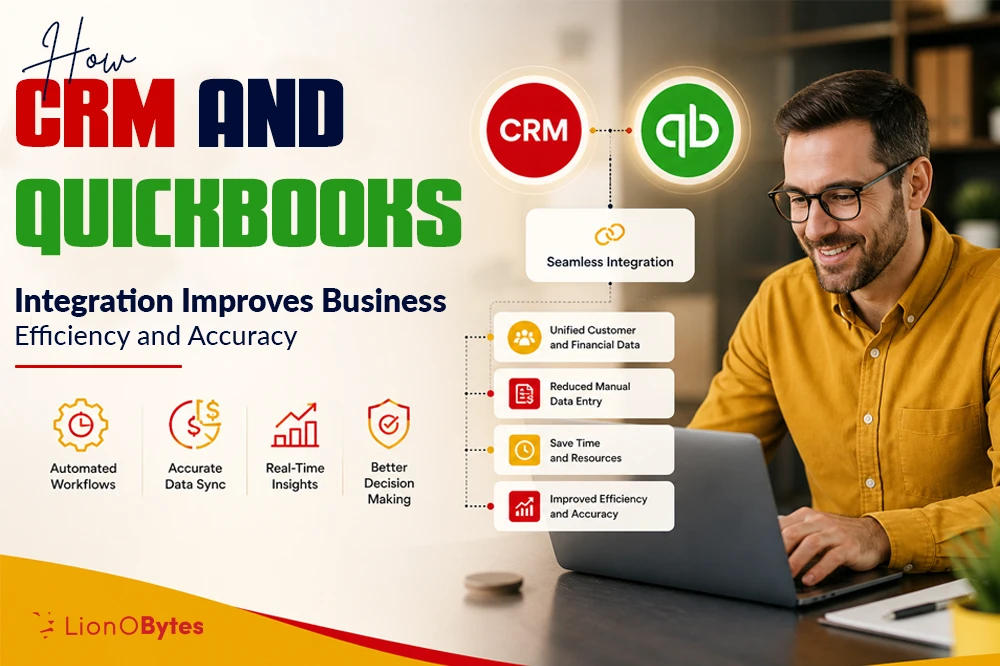
Still switching between different software to manage customers and finances? A CRM and QuickBooks integration could be a gamechanger for your business. This setup helps your team work faster, make fewer mistakes, and understand your business better.
Key Takeaways
- When your CRM and QuickBooks work together, customer information stays the same everywhere.
- Integration reduces manual work by automatically moving information between systems.
- You can see the complete picture of each customer in one place. Learn how much they buy, what they like, and when they pay their bills.
- Let the software do routine tasks like creating invoices, updating customer records, and sending reminders.
- When all your customers and financial information are in sync, you get clear reports and real-time insights.
- No more lost emails, forgotten sales opportunities, or mixed-up customer details. Everything stays organized and easy to find when your systems are connected.
What Does CRM and QuickBooks Integration Really Mean?
Let's start with something simple. A CRM is software that helps you manage customer relationships. QuickBooks is software that helps you manage your money and accounts.
When you integrate these two systems, they talk to each other automatically. Instead of entering customer information in CRM and then entering it again in QuickBooks, the information flows between them automatically.
Why Does Your Business Need CRM and QuickBooks Integration?
The Problem Without Integration
Many small and medium businesses use CRM and QuickBooks separately. Here is what that looks like:
- A salesperson adds a new customer to the CRM.
- The accounting team hears about it and enters the same customer into QuickBooks.
- The customer information becomes different in each system.
- You cannot track which invoices match which customer relationships.
- Reports show conflicting information.
- Your team spends hours moving data between systems.
This is like having a telephone line where each person has to repeat the message to the next person. By the time the message reaches the end, it might be completely different.
The Solution: Integration
When CRM and QuickBooks integration works properly, the data moves automatically. One person enters a customer once, and both systems get the correct information. No duplication. No delays. No mistakes.
The Business Benefits of CRM and QuickBooks Integration
1. Stop Data Entry Mistakes
The Problem: When your team enters the same information in multiple places, mistakes happen. Maybe someone spells a customer's name differently. Maybe an address is slightly wrong. These small errors grow into big problems.
With integration between the CRM and QuickBooks, data is entered into the system once. It moves to both places automatically. No mistakes from typing the same thing twice.
2. Know Your Customers Better
When CRM and QuickBooks are connected, you see the full picture of each customer:
- What products did they buy
- How much did they spend
- When they pay their invoices
- How often do they buy
- What they talked to your sales team about
- Any special requests or problems they mentioned
This helps your team make smarter decisions. Your sales team can see that a customer is behind on payments before making a new sales pitch. Your customer service team can access purchase history to resolve issues faster.
3. Create Better Invoices and Quotes
When you create a quote or invoice in your CRM, QuickBooks can automatically:
- Fill in the correct customer information
- Use the right prices from your system
- Calculate taxes correctly
- Track inventory changes
- Update customer balance information
This means fewer mistakes on invoices and faster billing.
4. Understand Your Business Better
Integration gives you better reports and insights. You can see:
- Which customers spend the most money
- Which products make the most profit
- How fast do customers pay their bills
- Which sales team members bring the best customers
- How is your business growing over time
When this information is all in one place and updated in real time, you can make better decisions faster.
5. Save Time and Money
The biggest benefit is time. Your team does not waste time entering data twice. They do not waste time looking for information in different places. They do not waste time fixing mistakes caused by mismatched data.
For a small company with 5 people, this might save 5 to 10 hours per week. For a larger company, it could save 50 hours per week. That is real money in your bank account.
6. Automate Tasks That Waste Time
When CRM and QuickBooks are integrated, you can set up automatic workflows:
- Create invoices automatically when a deal closes
- Send payment reminders automatically when invoices are overdue
- Update customer information automatically across both systems
- Categorize expenses automatically
- Track project costs automatically
Your team focuses on growing the business instead of doing routine tasks.
How CRM and QuickBooks Integration Works
Step 1: Connection Setup
First, you connect your CRM to QuickBooks. This usually takes just a few minutes. You give permission for the two systems to share information.
Step 2: Data Mapping
You decide which information should move between systems. For example:
- The customer name in CRM should match the customer name in QuickBooks
- Deal value in CRM should create an invoice in QuickBooks
- Contacts in CRM should sync to customer contacts in QuickBooks
Step 3: Automatic Data Flow
Once set up, information flows automatically:
From CRM to QuickBooks:
- New customers get added to QuickBooks
- New deals become invoices or sales orders
- Customer contact changes update in QuickBooks
From QuickBooks to CRM:
- Invoice payment status updates in the customer record
- Overdue payments show up for sales teams to see
- Customer spending information comes into the CRM
Step 4: Ongoing Management
The integration continues working in the background. You can check the sync status anytime. If something does not sync properly, you get notified so you can fix it.
Types of Businesses That Benefit Most from CRM and QuickBooks Integration
Service Companies
Agencies, consultants, and service businesses love this integration because:
- They can track projects and costs together
- They see profit per customer or project
- They bill customers accurately without mistakes
- They automate invoicing when projects finish
Retail Businesses
Stores and online shops benefit because:
- Inventory updates in QuickBooks when customers buy
- Customer purchase history helps with marketing
- Invoices match the customer records automatically
- Returns and refunds sync properly
B2B Companies
- Business-to-business companies need this because:
- They track multiple contacts per customer
- They manage long sales cycles
- They need accurate invoicing for business customers
- They track projects and contracts
Small and Growing Companies
Small businesses see the biggest benefit because:
- They have fewer staff to enter data
- Each mistake costs more (small margin for error)
- They need to understand cash flow better
- They cannot afford to lose customer information
Real Problems That Integration Solves
Problem 1: Customer Data Does Not Match
Situation: Your CRM shows a customer paid an invoice, but QuickBooks shows it as unpaid. Which is right? You waste time investigating.
Solution: When integrated, the payment status updates automatically from QuickBooks to CRM. No confusion.
Problem 2: Lost Sales Opportunities
Situation: A customer calls to buy again, but your sales team does not know they have an overdue invoice. You make the sale, then find out they do not pay their bills.
Solution: Integration shows payment history to the sales team before they pitch. They can address payment issues first.
Problem 3: Wrong Pricing or Products
Situation: The accounting person quoted a customer one price, but the salesperson quoted another. The customer gets confused.
Solution: Prices and products sync from one source. Everyone uses the same information.
Problem 4: Mismatched Customer Names
Situation: The CRM calls it "ABC Company," but QuickBooks has "ABC Corp." The system thinks it is two different customers.
Solution: Customer names sync from one source. No duplicate records.
Problem 5: Lost Invoice Attachments or Details
Situation: An email with a quote attachment gets lost. Your team cannot find the details when the customer asks.
Solution: Everything is in the system. Everything is backed up automatically.
Setting Up CRM and QuickBooks Integration: The Key Steps
Step 1: Choose Your CRM
Pick a CRM that connects well with QuickBooks like LionO360 CRM. Make sure it has a direct connection or a good-quality third-party app.
Step 2: Check QuickBooks Version
You likely need QuickBooks Online because QuickBooks Desktop does not integrate as easily with modern CRM systems. QuickBooks Online connects to more applications.
Step 3: Find the Right Integration Tool
You have a few options:
- Direct integration: CRM connects directly to QuickBooks.
- Middleware tool: A third-party tool moves data between them.
- Custom API: A developer builds a custom connection.
Step 4: Plan Your Mapping
Decide what information moves where:
- Which customer fields sync?
- When does a deal become an invoice?
- Which payments get tracked?
- What about custom fields?
Step 5: Test Before Going Live
- Set up the integration with test accounts first
- Try different scenarios
- Make sure the data looks right
- Check that automatic workflows run correctly
Step 6: Train Your Team
- Show everyone how to use the integrated systems
- Explain what happens automatically
- Teach them to spot sync problems
- Give them a person to contact if something breaks
Step 7: Monitor and Adjust
- Check sync status regularly
- Get alerts about failed syncs
- Adjust settings based on real-world use
- Plan for future needs
Common Integration Challenges and How to Solve Them
Challenge 1: Slow Sync Speed
Problem: Information takes too long to move between systems.
Solution:
- Check your internet connection
- Make sure both systems are updated
- Reduce the amount of data syncing
- Contact support if it is still slow
Challenge 2: Duplicate Customer Records
Problem: The same customer appears multiple times.
Solution:
- Clean up your data before integrating
- Set up matching rules (sync by customer ID, email, or phone)
- Use the CRM's duplicate finder to clean up
Challenge 3: Custom Fields Not Syncing
Problem: Special information you added to your system is not being transferred.
Solution:
- Check if the integration supports custom fields
- You might need middleware or a developer
- Some custom fields cannot sync (talk to support)
Challenge 4: Too Much Data Syncing
Problem: Information you do not need keeps syncing, slowing things down.
Solution:
- Turn off unnecessary fields
- Set specific sync rules
- Sync on a schedule instead of real-time
- Archive old records
Challenge 5: Old Data Conflicting with New Data
Problem: Outdated customer information overwrites correcting new information.
Solution:
- Clean up old data before integrating
- Set clear rules about which system is the "source of truth."
- Manual review of important data during setup
How LionO360 CRM Works With QuickBooks

LionO360 CRM provides a modern solution for businesses looking to connect customer relationships with financial management.
What LionO360 Offers
LionO360 CRM integrates smoothly with QuickBooks Online. The system automatically moves customer information, sales data, and invoice details between platforms.
Key Features:
- When you add a customer in LionO360, they appear in QuickBooks automatically
- Closing a deal in LionO360 can create an invoice in QuickBooks
- See payment status for each customer without switching systems
- Get combined reports from both systems
- Set up automation for your specific business processes
- Bank-level security for all your information
Why Choose LionO360 for QuickBooks Integration
- Made for Integration: LionO360 was built with the QuickBooks partnership in mind
- Simple Setup: No tech knowledge needed
- Great Support: Real people help you get started
- Affordable: Pricing that works for small and medium businesses
- Keeps Growing: New features added based on customer feedback
- Secure: Your data stays safe and private
To learn more and see how LionO360 works with QuickBooks, visit us or book a free CRM demo.
Related News: Best CRM for QuickBooks Integration: LionO360 System
Frequently Asked Questions
Will integration cause me to lose any data?
No. Integration does not delete or remove any data. It simply copies information from one system to another. Your original data stays safe in both places. During setup, you can test with dummy accounts first to make sure everything works right.
How long does it take to set up CRM and QuickBooks integration?
Most direct integrations take 5 to 30 minutes to connect to the accounts. Planning information syncs takes 1 to 2 hours. Testing and training your team takes 4 to 8 hours. Many businesses are fully set up and running within one week.
Can I use CRM and QuickBooks integration if I have lots of old data?
Absolutely. You can clean up old data first if you want to keep things tidy. Or you can leave it as is. The integration works with old data and new data. Old customer records sync just fine.